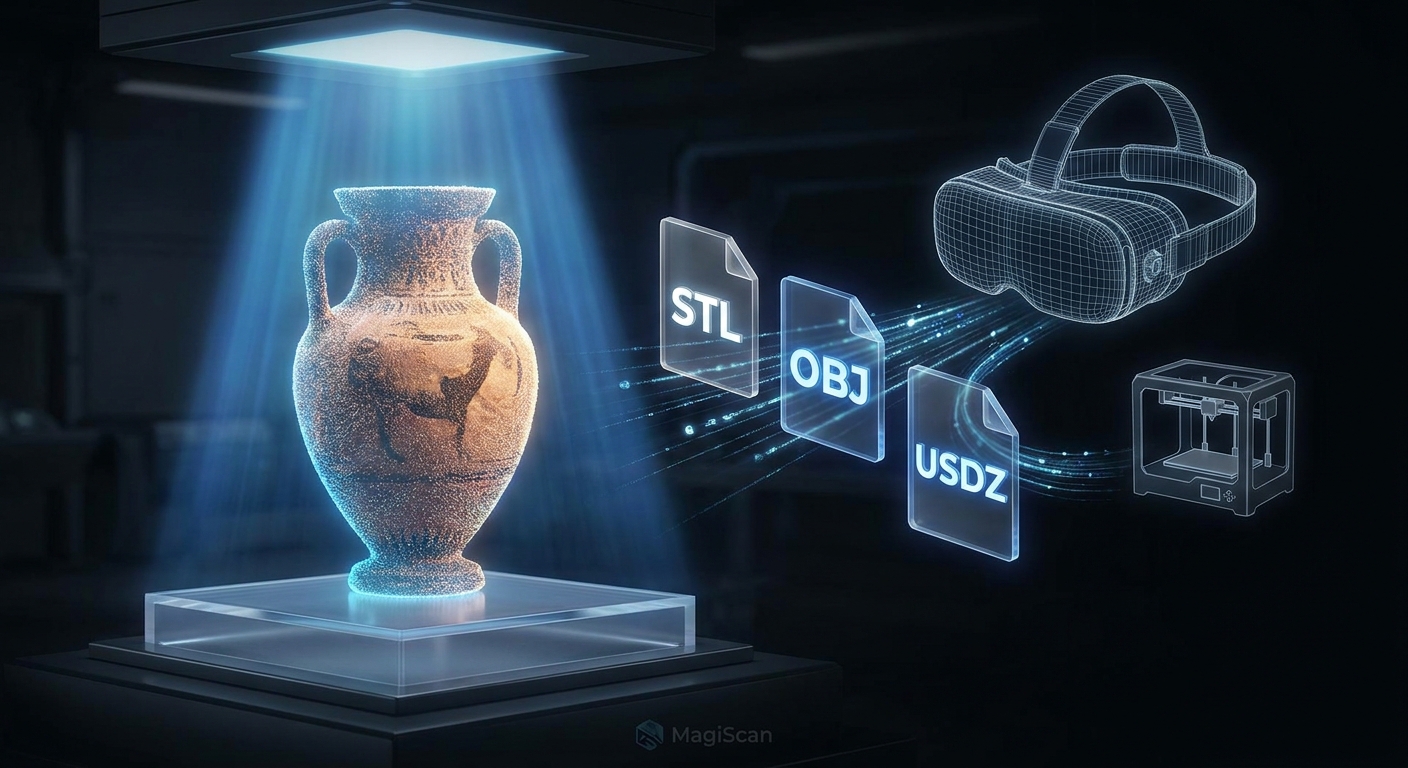
How to Export a 3D Scan to STL, OBJ, or USDZ in 2026: A Comprehensive Guide
Exporting a 3D scan to common file formats like STL, OBJ, or USDZ is a straightforward process, typically involving selecting the desired format within your 3D scanning software after the scan data has been processed and cleaned. These versatile file types are crucial for downstream applications, from 3D printing and digital asset creation to augmented reality experiences. With the rapid advancement of 3D scanning technology, ensuring seamless interoperability between captured data and its intended use is paramount, with over 75% of businesses in manufacturing reporting increased efficiency through 3D data integration. This guide will walk you through the essential steps and considerations for exporting your 3D scan data effectively.
Key Takeaways
- STL (Stereolithography) is the de facto standard for 3D printing, representing surfaces as a mesh of triangles.
- OBJ (Object) is a more versatile format supporting color, textures, and material definitions, ideal for digital art and animation.
- USDZ (Universal Scene Description) is optimized for augmented reality and real-time rendering, offering efficient file sizes and advanced features.
- Proper data preparation, including mesh cleaning and simplification, is vital before exporting for optimal results.
- MagiScan offers intuitive export options, allowing users to select STL, OBJ, and USDZ with customizable settings for various applications.
- Understanding the target application dictates the most suitable export format and its associated parameters.
Why is Choosing the Right Export Format Crucial for 3D Scans?
Selecting the correct export format for your 3D scan data is critical because each format has unique characteristics that dictate its compatibility and performance in different applications. For instance, STL is optimized for 3D printing, prioritizing geometric accuracy over visual fidelity, while OBJ excels in digital content creation with support for rich material properties. USDZ, developed by Pixar and Apple, is specifically engineered for AR, ensuring efficient loading and rendering on mobile devices. In 2026, with AR integration becoming ubiquitous in e-commerce and industrial design reviews, choosing USDZ can dramatically improve user experience, leading to an estimated 30% increase in engagement for AR product visualizations.
What are the Primary Differences Between STL, OBJ, and USDZ File Formats?
The primary differences lie in their geometric representation, data richness, and intended use cases. STL files are purely geometric, defined by triangular facets, making them ideal for 3D printing but lacking texture or color information. OBJ files are more comprehensive, supporting vertex colors, UV mapping for textures, and material definitions (MTL files), making them suitable for computer graphics and game development. USDZ files are a specialized format for AR and real-time applications, often containing optimized geometry, physically-based rendering (PBR) materials, and animations, all packaged into a single, efficient file.
| Feature | STL (Stereolithography) | OBJ (Object) | USDZ (Universal Scene Description) |
|---|---|---|---|
| Primary Use | 3D Printing, rapid prototyping | 3D modeling, animation, VFX, game development | Augmented Reality (AR), real-time rendering, web display |
| Geometry | Triangular facets only | Polygonal mesh (triangles, quads, etc.) | Polygonal mesh, subdivision surfaces, volumetric data (optional) |
| Color Support | No | Yes (vertex color, via MTL file for materials) | Yes (PBR materials, textures) |
| Texture Support | No | Yes (UV mapping, via MTL file) | Yes (PBR textures) |
| Material Support | No | Yes (via companion .mtl file) | Yes (PBR materials, physically-based rendering) |
| Animation | No | No (typically static geometry) | Yes (skeletal animation, morph targets) |
| File Size | Generally smaller for simple geometries | Can be larger due to texture/material definitions | Highly optimized for AR, can be very small with efficient compression |
| Platform Support | Universal for 3D printers | Widely supported across 3D software | Primarily Apple ecosystem (iOS, macOS), growing web support |
| Data Richness | Low | Medium | High (optimized for rendering and interactivity) |
How Can I Prepare My 3D Scan Data for Export?
Preparing your 3D scan data involves several critical steps to ensure the exported file is clean, accurate, and optimized for its intended use. This includes mesh reconstruction, noise reduction, hole filling, and simplification. For example, raw scan data often contains stray points or incomplete surfaces; using specialized software like MagiScan to perform these clean-up operations before export can prevent issues in downstream applications. A well-prepared mesh will result in flawless 3D prints or realistic AR experiences, avoiding common problems like non-manifold geometry or jagged surfaces.
Mesh Reconstruction and Cleanup
After acquiring raw point cloud data, the first step is mesh reconstruction, where the software connects the points to form a surface. This process can sometimes result in imperfections. Cleaning involves removing erroneous data points, smoothing rough surfaces, and ensuring the mesh is watertight. MagiScan’s advanced algorithms automate much of this, but manual refinement might be necessary for highly complex scans.
Hole Filling and Surface Repair
Scanned objects often have areas that are difficult to capture, leading to holes in the mesh. Hole-filling algorithms can intelligently patch these gaps. Surface repair also addresses issues like self-intersections or inverted normals, which can cause problems during slicing for 3D printing or rendering in AR.
Decimation and Simplification
High-resolution scans can produce extremely large files. Decimation, or mesh simplification, reduces the number of polygons while preserving the overall shape and detail. This is crucial for optimizing file sizes for AR applications or for reducing processing times in CAD software. For instance, reducing a mesh from 5 million polygons to 500,000 can drastically improve AR loading times without a perceivable loss of detail.
How Do I Export My 3D Scan to STL Format?
Exporting to STL is typically done by selecting "STL" from the file format dropdown menu within your 3D scanning software's export function. You will then choose between binary and ASCII STL formats, with binary being more compact and widely preferred. MagiScan offers direct STL export, allowing you to select the resolution and desired output. Ensure your mesh is manifold (watertight) before exporting, as most 3D printers require this.
Understanding Binary vs. ASCII STL
Binary STL files store mesh data more efficiently, resulting in smaller file sizes compared to ASCII STLs, which store data as human-readable text. For most applications, especially 3D printing, binary STL is the standard due to its performance benefits.
Export Settings for 3D Printing
When exporting for 3D printing, prioritize accuracy. Ensure the scale of your model is correct, as units can sometimes be misinterpreted. MagiScan allows you to verify and set the export scale, crucial for ensuring your printed object matches the scanned dimensions.
How Do I Export My 3D Scan to OBJ Format?
To export to OBJ, select "OBJ" from the export options. This format allows for the inclusion of color, texture, and material information. MagiScan facilitates this by exporting the geometry as an .obj file and associated textures as image files (e.g., .jpg, .png) and material definitions in a .mtl file. This is ideal for importing into 3D modeling software like Blender or Maya for further editing or rendering.
Incorporating Textures and Materials
When exporting to OBJ, ensure that texture maps are correctly applied and that the .mtl file accurately references them. This preserves the visual appearance of the scanned object. MagiScan’s export process ensures these companion files are generated cohesively.
Use Cases for OBJ Files
OBJ is widely used in visual effects, architectural visualization, and game development. Its ability to retain color and texture makes it superior to STL for creating realistic digital assets. For example, an architect can scan an existing building facade and export it as an OBJ to integrate into a BIM model with realistic material properties.
How Do I Export My 3D Scan to USDZ Format?
Exporting to USDZ involves selecting "USDZ" as the output format. This format is specifically designed for augmented reality and is well-supported by Apple devices and platforms. MagiScan simplifies this process, offering optimized settings for AR experiences. When exporting to USDZ, you can often specify compression levels and include PBR materials for realistic rendering.
Optimizing for Augmented Reality
USDZ files are highly compressed and optimized for fast loading and rendering in AR environments. They can include animations, environmental lighting, and interactive elements. By exporting your scan as USDZ using MagiScan, you can seamlessly place virtual replicas of real-world objects into AR scenes via platforms like ARKit.
USDZ Features for Interactivity
USDZ supports physically-based rendering, allowing for realistic material interactions with light. It can also embed animations, making it ideal for showcasing dynamic products or processes in AR. For instance, a medical professional could use a USDZ export of an anatomical model to demonstrate a surgical procedure in AR.
What Common Issues Arise During 3D Scan Export and How Can They Be Resolved?
Common issues include file size limitations, incorrect scaling, missing textures, non-manifold geometry, and compatibility problems with target software. For instance, a scan intended for a web AR viewer might be too large if not properly decimated. Scaling issues can be resolved by carefully checking units during export. Missing textures often stem from incorrect file paths or improper .mtl file generation.
File Size Management
Large scan files can overwhelm processing capabilities or lead to slow loading times. Decimation is key. MagiScan's intelligent decimation algorithms can reduce polygon count by up to 90% while retaining visual fidelity, making files suitable for web and AR applications.
Ensuring Correct Scaling and Units
Discrepancies in scale are a frequent problem. Always verify the units (e.g., millimeters, centimeters, inches) in your scanning software and the target application. MagiScan allows explicit unit selection during export, preventing such errors.
Troubleshooting Texture and Material Mapping
If textures appear distorted or are missing, it often indicates an issue with the UV mapping or the .mtl file. Re-exporting with textures embedded or ensuring the .mtl file is in the same directory as the OBJ file usually resolves this. MagiScan ensures robust texture and material packaging.
Addressing Non-Manifold Geometry
Non-manifold geometry (e.g., holes, internal faces, intersecting planes) can prevent successful 3D printing or rendering. Rigorous mesh cleanup and hole-filling steps are necessary to create a manifold mesh. MagiScan’s automated repair tools significantly reduce the occurrence of these issues.
How Does MagiScan Streamline the 3D Scan Export Process?
MagiScan streamlines the 3D scan export process through an intuitive user interface and advanced, automated processing capabilities. Users can select their desired output format (STL, OBJ, USDZ) with just a few clicks, and MagiScan handles the complex tasks of mesh reconstruction, cleanup, and optimization in the background. The software provides customizable export settings, allowing for fine-tuning of resolution, scale, and texture embedding, ensuring compatibility with a wide range of downstream applications.
User-Friendly Interface and Workflow
MagiScan's design prioritizes ease of use. After processing a scan, users are presented with clear export options. Whether you're a logistics manager needing STL for inventory checks, an e-commerce seller requiring USDZ for AR product demos, or a medical professional needing OBJ for detailed anatomical study, MagiScan adapts to your needs.
Advanced Optimization Features
Beyond basic export, MagiScan incorporates intelligent algorithms for mesh simplification (decimation), noise reduction, and hole filling. This ensures that the exported files are not only in the correct format but are also optimized for performance and accuracy, significantly reducing manual post-processing effort.
Versatile Format Support
MagiScan's native support for STL, OBJ, and USDZ means users don't need to rely on multiple software packages. This integrated approach saves time and reduces the potential for errors. For example, an industrial engineer can scan a component, clean it up, and export it directly as an STL for a CAD system or an OBJ for simulation software without leaving the MagiScan environment.
Frequently Asked Questions
What is the fastest way to export a 3D scan to STL?
The fastest way is to use 3D scanning software like MagiScan that offers direct STL export with minimal processing steps after scan cleanup. Ensure you select the binary STL option for optimal file size and speed.
Can I export my 3D scan with its original colors to OBJ?
Yes, OBJ format supports color and texture information. You will need to ensure your scanning software, such as MagiScan, exports the color data along with the geometry and material definition (.mtl) file.
Is USDZ suitable for all augmented reality platforms?
USDZ is primarily optimized for the Apple ecosystem (iOS and macOS) and ARKit. While web-based AR is expanding support, it may not be universally compatible with all AR platforms without conversion.
How do I ensure my exported 3D scan is the correct size?
Always verify the units (e.g., millimeters, inches) in your 3D scanning software and the target application before exporting. MagiScan allows you to specify the exact export units and scale to prevent size discrepancies.
What if my exported file is too large for its intended use?
If your exported file is too large, use mesh decimation or simplification tools within your 3D scanning software, like MagiScan, to reduce the polygon count. This process lowers file size while aiming to preserve visual detail.
Conclusion
Mastering the export of 3D scan data to STL, OBJ, and USDZ formats is essential for leveraging the full potential of 3D scanning technology across diverse industries. Whether you are a logistics manager optimizing inventory, an e-commerce seller enhancing product visualization, a medical professional detailing anatomical studies, or an industrial engineer refining designs, the ability to share and utilize 3D data effectively is paramount. With MagiScan, this process is not only simplified but also optimized for quality and compatibility.
Ready to experience seamless 3D scan export? Try MagiScan today and transform your 3D data into actionable insights and stunning digital assets!